Mastering Goals Google Analytics: A Practical Guide to Tracking Conversions
Let’s get straight to it. Goals in Google Analytics are how you track user actions that actually matter to your business. Think of them as the digital "cha-ching" of a cash register. Every time a goal is completed, it’s a win—a sale, a lead form submission, a newsletter signup.
Without goals, you're just counting visitors. With them, you're measuring success.
Why Mastering Analytics Goals Is a Game-Changer
Forget the generic "tracking is important" talk. Let's dig into the real business impact. When you set up goals properly, Google Analytics stops being a simple traffic report and becomes a serious business intelligence tool. It’s the difference between knowing how many people showed up to your site and knowing how many of those people actually grew your business.
This is all about defining what a "win" looks like on your website and tying that data directly to your bottom line.
For an e-commerce store, a win is a completed purchase. For a law firm, it’s a submitted "Contact Us" form. For a blogger, it might be a new email subscriber. Each of these actions is a tangible, measurable step in a customer's journey.
Turning Raw Data into Actionable Insight
Without goals, you’re flying blind. You might see a huge traffic spike from a social media campaign, but you'll have zero clue if those new visitors did anything useful. Did they buy something? Request a quote? Or did they just bounce?
Goals are what give your traffic data context. They answer the ultimate marketing question: "Is what we're doing actually working?"
Imagine launching a marketing campaign without knowing how many visitors turned into leads or customers. That was the grim reality before tools like Google Analytics became the industry standard. Today, it powers a mind-boggling 37.9 million websites worldwide, making it the undisputed king of tracking everything from page views to conversions. That's not just a stat; it’s proof of how businesses depend on it to measure their ad spend ROI. You can get more details on these stats over at MageComp.
How the Pros Use Goal Tracking
Digital marketing agencies managing millions in ad spend don’t guess. They live and die by conversion data. Here’s a peek into their playbook:
- Smarter Budget Allocation: By tracking which campaigns (say, Google Ads vs. Facebook Ads) are driving the most goal completions, they know exactly where to double down for the highest return. No more throwing money at the wall to see what sticks.
- A/B Testing That Works: They test everything—landing page designs, headlines, calls-to-action—to see which version converts more visitors into leads or customers. It’s data-driven optimization, not guesswork.
- Plugging the Leaks: They analyze the conversion funnel to pinpoint exactly where users are dropping off. Is everyone abandoning their shopping cart at the shipping page? Goals help them find that leak and fix it.
This level of insight isn't just for the big players. By mastering goals in Google Analytics, any business can get this same crystal-clear understanding of its marketing ROI, making sure every dollar spent is actively working to grow the company.
Translating Business Objectives Into Trackable Goals
Let’s get one thing straight: effective analytics tracking doesn't start inside the Google Analytics dashboard. It starts with your business strategy. Before you touch a single setting, you have to answer the most important question: "What actions on my website actually mean we're winning?" Setting up goals in Google Analytics is just the technical part—translating those answers into data you can actually measure.
If you skip this step, you’ll end up drowning in vanity metrics. Sure, a huge traffic number looks great on a slide, but it's completely useless if none of those visitors are turning into customers, leads, or subscribers.
Connecting Your Big-Picture Strategy to Clicks and Taps
Your high-level business objectives are the "what." A classic example might be, "We need to increase qualified leads by 20% this quarter." Your trackable GA goals are the "how"—the specific digital actions people take that get you closer to that objective.
To bridge that gap, you need to identify your Key Performance Indicators (KPIs). These are the specific, measurable user interactions that have a direct line to your business's success.
- For a Service-Based Business (like a law firm or a clinic): The main objective is pretty simple: get more leads. A primary KPI here would be the number of contact form submissions or clicks on your phone number.
- For an E-commerce Store: It's all about driving sales. Your key KPIs are completed purchases, how many items people add to their cart, and how many start the checkout process.
- For a Content Publisher (like a blog or news site): The goal is to grow and engage an audience. Your KPIs would be things like newsletter sign-ups, how long people stick around on a page, or downloads of a free resource like an ebook.
Think of a well-defined measurement plan as your blueprint. It makes sure every goal you set up in Google Analytics is tied to a real business outcome, turning your data from a passive report into an active guide for making smarter decisions.
This connection is what transforms your analytics from a confusing dashboard into a strategic weapon.
Mapping Your Objectives to Google Analytics Goals
Once you've got your KPIs locked in, the next move is mapping them to the right tracking mechanism in Google Analytics. How you do this is wildly different depending on whether you're using the old Universal Analytics (UA) or the current Google Analytics 4 (GA4).
In Universal Analytics, goals were neatly packed into four types:
- Destination: This was the go-to for tracking when a user landed on a specific page, like a "thank-you" page after filling out a form. Perfect for lead submissions or order confirmations.
- Event: This monitored specific clicks that don't load a new page—think clicking a video play button, downloading a PDF, or tapping an affiliate link.
- Duration: This measured engagement by tracking sessions that lasted longer than a certain time you specified.
- Pages/Screens per session: Another engagement metric that counted users who viewed a minimum number of pages during their visit.
Now, in Google Analytics 4, the model is much simpler but way more powerful. Everything is an event. There's no separate "Goals" section anymore. Instead, you can simply flag any event you track as a Conversion (which Google now often calls a "Key Event").
For instance, a form_submission event can be toggled on as a conversion with a single click. This event-based structure gives you a much more flexible way to measure the entire customer journey. You can get even more powerful insights by understanding how to use UTM parameters, which lets you see exactly which marketing campaigns are driving these valuable conversion events.
To make this crystal clear, I've put together a table showing how common business objectives translate into trackable metrics for different types of businesses.
Translating Business Objectives into GA Goals
This table breaks down how to turn those big-picture business goals into concrete, measurable events you can track in Google Analytics.
| E-commerce Store | Increase Online Sales | purchase event (GA4) or Destination goal on order confirmation page (UA) | Conversion Rate, Average Order Value |
|---|---|---|---|
| B2B Software | Generate Demo Requests | generate_lead event (GA4) on form submit or Destination goal (UA) | Goal Completions, Cost Per Lead |
| Healthcare Clinic | Book Appointments | Click-to-call event (click_to_call) or form submission goal | Conversion Rate by Traffic Source |
| Content Blog | Build Email List | sign_up event (GA4) or Event goal on newsletter form submit (UA) | Subscriber Growth Rate |
Seeing your goals mapped out like this makes it obvious which metrics truly matter. It shifts your focus from just "getting more traffic" to "getting more of the right kind of traffic" that completes these critical actions.
So, You're Still Wrangling with Universal Analytics Goals?
Even though Google Analytics 4 is the new kid on the block, a ton of valuable history is still locked away in Universal Analytics (UA). If you need to analyze past performance or make sense of legacy reports, you absolutely have to understand how UA goals worked. It’s a foundational skill for anyone serious about tracking the entire customer journey over time, not just what's happening today.
Unlike GA4's "measure anything and everything" event model, UA was much more structured. It forced you to fit your business objectives into one of four specific goal types. Getting this right from the start was critical, because there was no going back to fix it later.
The Four Flavors of UA Goals
Think of UA's goal types as a wrench set—each one was built for a specific job. You had to pick the right tool to measure a particular user interaction, otherwise, the data just wouldn't make sense.
Here’s the breakdown:
- Destination Goals: The classic. A user lands on a specific page, like a "thank-you" page after submitting a form. Simple and effective.
- Duration Goals: This one was all about engagement. It tracked how many people stuck around on your site for longer than a time you specified.
- Pages per Session Goals: Another engagement metric. This goal counted visitors who clicked through a certain number of pages in one visit.
- Event Goals: The most powerful and flexible of the bunch. This tracked specific clicks or interactions that didn't load a new page, like playing a video or downloading a PDF.
This old screenshot from Google's documentation shows how you’d start the setup process. You could pick from a template or build something custom.
You can see how UA tried to guide you toward common business objectives like Revenue or Acquisition. It was a very top-down, structured approach.
Nailing Down Destination Goals for Key Pageviews
Destination goals were the bread and butter of UA tracking for a reason: they were straightforward and hard to mess up. A conversion was triggered every time a user hit a specific URL, making them perfect for tracking things like form submissions or completed purchases.
Let’s say a local dental clinic wants to know how many people are booking appointments online. After a patient fills out the form, they get sent to a page like yoursite.com/appointment-confirmed. By setting that URL as a Destination goal, the clinic gets a clean, reliable count of every single person who successfully booked. No guesswork involved.
Pro Tip: The real magic with Destination goals was the Funnel Visualization. You could map out the exact steps a user was supposed to take—like visiting the cart, then the checkout page, then the thank-you page. This was a goldmine for spotting where people were dropping off in the process.
Using Duration and Pages Per Session to Measure Engagement
Not every win ends on a confirmation page. Sometimes, you just need to know if people are actually reading your content and finding it valuable. That’s where Duration and Pages per Session goals came into play. They were proxies for user interest when a hard conversion wasn't the point.
Imagine a B2B tech company with a blog full of in-depth articles. For them, a visitor who spends more than three minutes on the site is probably a serious lead. They could set up a Duration goal to flag these highly engaged users, which helps them figure out what content is truly resonating.
Similarly, they might set a Pages per Session goal to fire for anyone who views more than five pages. If someone is digging that deep, it’s a strong signal they’re interested in what the company has to offer.
Tracking Granular Actions with Event Goals
Event goals were where UA got really powerful. They let you track user actions that didn't involve loading a whole new page, but they required a bit more setup. You first had to configure Event Tracking, usually through Google Tag Manager or by adding some code to your site.
Events were built on a simple hierarchy: Category, Action, and Label.
For example, tracking a video play might look like this:
- Category: Video
- Action: Play
- Label: Homepage Explainer Video
Once you had events firing correctly, you could create an Event goal tied to a specific one. A software company could use this to track how many people download a whitepaper. The click on the "Download" button would trigger an event, and the goal would tick up by one. Suddenly, the marketing team has hard data on which content is actually generating leads.
This approach was a game-changer for modern, single-page applications and laid the groundwork for the event-driven model that is now the core of Google Analytics 4.
Configuring Conversions in Google Analytics 4
With the arrival of Google Analytics 4, the old, familiar concept of "Goals" got a complete overhaul. GA4 is built on a totally different, event-based model that gives you a ton more flexibility. Instead of configuring specific goal types, every important user action is now tracked as an event.
Honestly, this shift is a massive improvement. In the old Universal Analytics, setting up a goal based on something like a button click was a clunky, two-step process. In GA4, you just find any event you're tracking and flip a switch to mark it as a Conversion. It's all one unified system now, which just makes more sense for tracking a modern customer journey.
This old flowchart shows just how siloed the paths were for setting up goals in Universal Analytics.
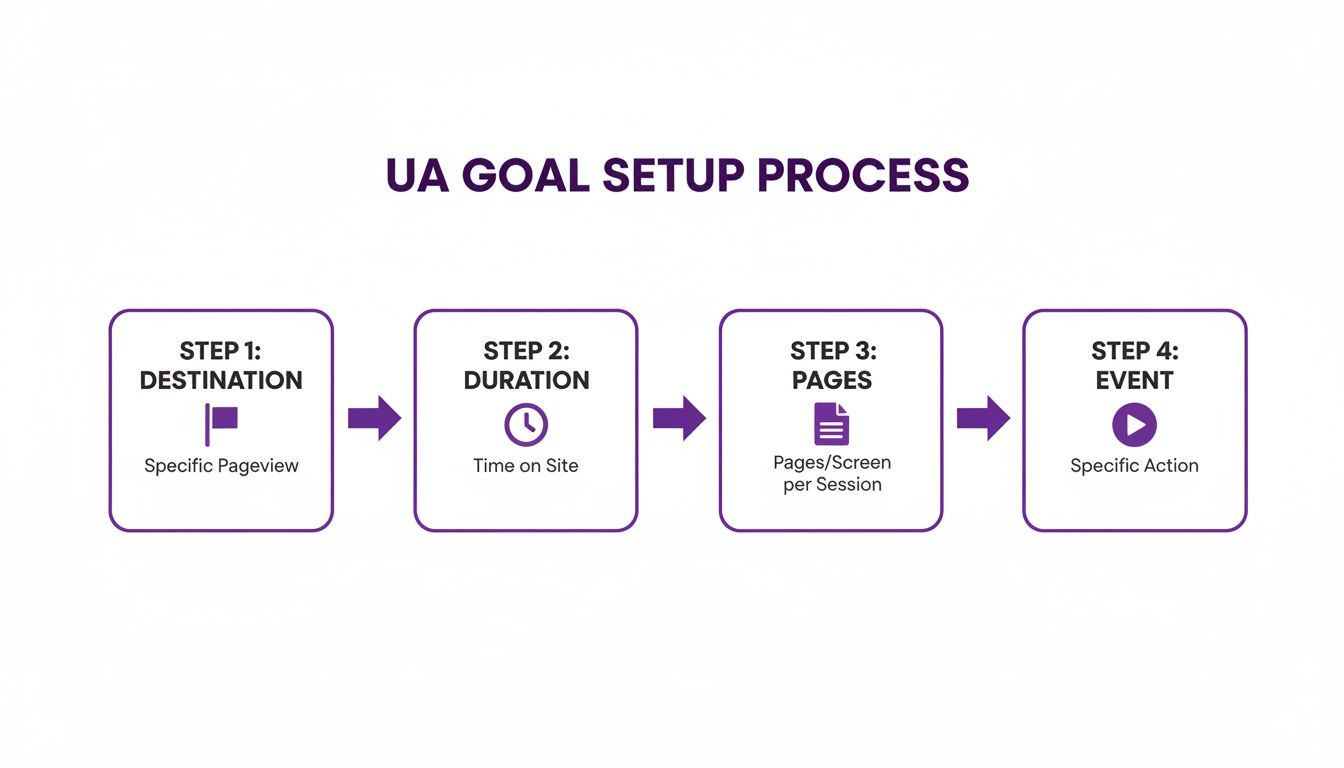
Each goal type—Destination, Duration, Pages, and Event—was its own separate little world for measuring success. GA4’s event-based model blows that out of the water.
Understanding the Event-Driven Model
In the GA4 world, everything a user does can be an event—loading a page (page_view), scrolling down the page (scroll), or clicking a link. The good news is that GA4 automatically tracks a bunch of these basic interactions right out of the box with its Enhanced Measurement feature. This gives you a solid baseline of data without you having to lift a finger.
The real power, though, is in tracking the specific events that actually matter to your business. This is where you build a measurement plan that truly captures value.
For an e-commerce store, the holy grail is the purchase event. For a law firm, it's probably a generate_lead event that fires when someone submits a contact form. The process is simple: first, make sure the event is being tracked. Then, just tell GA4 that this event is a conversion.
In the high-stakes game of e-commerce and paid social campaigns, knowing your conversion rate is everything. It's no surprise that Google Analytics 4 is now actively tracking conversions on over 14.2 million websites, a huge leap since its 2020 launch. This event-driven powerhouse has become essential, with over 450,000 Shopify stores integrating it to monitor everything from purchases to cart abandonment. You can dig into more data on GA4's widespread adoption if you're curious.
Creating Custom Events for Key Actions
While GA4 gives you plenty of automatic events, you'll almost certainly need to create custom ones to track what's unique to your business. You can do this right inside the GA4 interface or, for more complex setups, through Google Tag Manager.
Let's walk through a classic example: creating a conversion when someone lands on a "Thank You" page after filling out a form.
First, you'll want to head to Admin > Data display > Events.
From there, click the Create event button. This will open up a configuration panel where you'll define the rules for your new custom event.
Here's how you'd set it up for a newsletter signup confirmation page:
- Custom event name: newsletter_signup_confirmation (Always use a clear, descriptive name you'll remember).
- Matching conditions:
- event_name equals page_view
- page_location contains /thank-you-for-subscribing
What this does is tell GA4: "Hey, every time a standard page_view event happens on a URL that includes /thank-you-for-subscribing, I want you to fire a new, separate event called newsletter_signup_confirmation."
By creating a dedicated event for this specific page view, you gain incredible precision. You're not just marking all page views as conversions; you're isolating the one that signifies a high-value action. This keeps your conversion data clean and actually useful.
Marking an Event as a Conversion
Once your custom event is created and GA4 starts seeing it in the data (this can sometimes take up to 24 hours to show up), the final step is ridiculously easy.
Just go back to Admin > Data display > Events. You'll see a big list of all the events your property is collecting.
All you have to do is find your new newsletter_signup_confirmation event in the list and toggle the switch under the "Mark as conversion" column.
That's it. You're done. From that moment on, every time that event fires, GA4 will count it as a conversion.
Practical Application: Passing Event Parameters
One of the best things about GA4's event model is the ability to attach custom parameters to your events. This adds a ton of rich, valuable context to your conversion data.
Think about an e-commerce purchase event. You can pass along critical info like:
- value: The total revenue from the order (e.g., 99.99).
- currency: The currency used (e.g., 'USD').
- items: A list of the actual products that were purchased.
Suddenly, your conversion count transforms into a detailed financial report right inside GA4.
For a B2B generate_lead event, you could pass a form_type parameter to know if a lead came from your "Contact Us" form versus your "Request a Demo" form. This kind of granular data lets you see which lead sources are generating the most valuable inquiries, helping you optimize your marketing spend with a level of accuracy that just wasn't possible before.
How to Verify and Analyze Your Conversion Data
Look, setting up goals in Google Analytics is a great first move, but it’s only half the battle. If your data is garbage, you’re making decisions with a blindfold on. This is where verification becomes non-negotiable—you absolutely have to confirm your goals are firing correctly before you even think about analyzing the results.
Don't skip this. I’ve seen businesses pour money into ad campaigns based on broken conversion tracking, which is basically the same as lighting your budget on fire. A few minutes of testing upfront can literally save you thousands down the road.
Confirming Your Setup Is Working Correctly
The moment after you configure a new goal or conversion is the most critical. You need to test it immediately to make sure it’s actually capturing what you think it is. Luckily, both Universal Analytics and GA4 have built-in tools designed for exactly this kind of real-time check.
For Universal Analytics (UA):
Your best friend here is the Real-Time report. Just open a new browser window, go to your site, and complete the action that should trigger your goal—fill out a test contact form, for example. Now, watch the Real-Time > Conversions report. You should see your goal completion pop up within seconds. If it doesn't, something’s wrong with your setup.
For Google Analytics 4 (GA4):
GA4 gives you a much beefier tool called DebugView. To get it working, you'll need to enable debug mode. The easiest way is with the Google Analytics Debugger Chrome extension or by using Google Tag Manager's Preview mode. Once it's active, go ahead and complete the conversion action on your site.
You’ll see a live stream of events pouring into DebugView. When you complete your key action, the event should appear with a green flag icon next to it, confirming GA4 has officially registered it as a conversion. This view is a lifesaver for troubleshooting because you can click in and inspect every single parameter being sent with the event.
Diving Into Your Conversion Reports
Once you’ve confirmed your goals are tracking accurately, it's time to dig into the reports and find out what they're telling you. This is where you connect website activity to actual business outcomes.
The reports you'll use depend on which version of Google Analytics you're running.
- In Universal Analytics: Head over to Conversions > Goals > Overview. This report gives you a high-level summary of your goal completions, conversion rates, and where those conversions came from. It’s the perfect starting point to get a feel for overall performance.
- In Google Analytics 4: The main report is under Reports > Engagement > Conversions (or Key events in some accounts). This report lists all the actions you’ve marked as a conversion and shows you the total count for each.
The real power of analytics isn't just counting conversions—it's understanding the context behind them. A high conversion count is great, but knowing which traffic source drove those conversions is what allows you to make smarter marketing decisions.
Segmenting Your Data for Powerful Insights
The most actionable insights come from slicing and dicing your data into smaller, comparable chunks. By segmenting your conversion data, you can answer critical business questions and pinpoint your most valuable audiences and marketing channels.
Here are a few practical ways to segment your data:
Traffic Source/Medium: Compare the conversion rates of users from google / organic versus facebook / cpc. If you discover that organic search visitors convert at a 5% rate while paid social visitors only convert at 1%, you know your SEO efforts are delivering some seriously qualified traffic.
Device Category: Break down conversion rates for users on desktop, mobile, and tablet. A significantly lower conversion rate on mobile could be a huge red flag, pointing to a poor user experience—like a clunky form or slow loading times—that needs your immediate attention.
Landing Page: Figure out which landing pages are your conversion workhorses. If one specific blog post is driving a ton of newsletter sign-ups, you should probably create more content around that topic. On the flip side, pages with high traffic but low conversions might have a weak call-to-action or high exit rates. Analyzing the difference between bounce rate and exit rate can offer some valuable clues. For more on this, you can learn about the distinction between bounce rate vs exit rate in our detailed guide.
By consistently verifying your setup and segmenting your reports, you transform goals in Google Analytics from a simple counting tool into a strategic asset that actually guides your growth.
Google Analytics Goals: Your Questions Answered
Even with a perfect setup, you're bound to hit a few snags or have questions when dealing with goals in Google Analytics. It's just part of the process. This section tackles the most common hurdles we see people run into, with straight-up answers to help you troubleshoot and get a better grip on conversion tracking.
We'll cover everything from the big shift from Universal Analytics to GA4 to making sure your data is actually telling the right story. Let's get into it.
Why Did Google Get Rid of Goals in GA4?
Google didn't just toss goals in the trash; they evolved them. In Universal Analytics, "Goals" and "Events" were two totally separate things, which honestly created a lot of confusion. You'd often have to set up an event, then turn around and create a goal based on that exact same event. It was redundant.
GA4 cleans this all up by making everything an event. Now, any event you track—whether it’s a simple page view or a critical form submission—can be flagged as a Conversion (now often called a Key Event) with a single click. This unified, event-based model is way more flexible and built for the messy, complex user journeys we see today.
What Replaced Goals in Google Analytics 4?
Conversions (or Key Events) are the direct replacement for Goals in GA4. Functionally, they do the exact same thing: measure the user actions that actually matter to your business.
The real difference is in the setup. Instead of having a dedicated "Goals" area, you now manage your conversions right from your main list of events. This streamlined approach cuts out the extra, clunky steps that Universal Analytics forced you into.
The core idea is the same; you're just using a much more integrated and logical tool now. Think of it less as a replacement and more of a massive upgrade to the tracking engine itself.
Can I Import My Old UA Goals into GA4?
Short answer: nope. You can't directly import your goals from Universal Analytics into GA4. The measurement models are fundamentally different. UA was built around sessions, while GA4 is built around events. That architectural change makes a direct copy-and-paste impossible.
You'll need to manually recreate your important UA goals as conversion events in your GA4 property. This means identifying the key actions you were tracking before, setting them up as new events in GA4, and then flipping the switch to mark them as conversions. It takes some upfront work, but it ensures your new setup is optimized for GA4's far more powerful system.
How Many Conversions Can I Set Up in GA4?
Google Analytics 4 gives you up to 30 conversions (Key Events) per property. That's a nice bump from Universal Analytics, which capped you at just 20 goals per reporting view. This bigger limit gives you more room to track a wider range of important customer interactions.
It also means you need a solid measurement plan. With more slots available, it's tempting to track everything, but you should stay focused on the actions that truly drive business value. A big part of that strategy is figuring out which marketing channels are actually contributing to those conversions. You can get a deeper understanding of this by reading our guide on what is attribution modeling, which breaks down how credit gets assigned to different touchpoints along the customer journey.
At Rebus, we turn complex data into clear, actionable strategies that fuel real growth. If you're ready to go beyond basic tracking and unlock what your analytics are truly trying to tell you, our team is here to help. Partner with us to supercharge your marketing and start seeing measurable success.